> For the complete documentation index, see [llms.txt](https://docs.bueno.art/llms.txt). Markdown versions of documentation pages are available by appending `.md` to page URLs; this page is available as [Markdown](https://docs.bueno.art/integrations-and-plugins/plugins/figma-bueno-exporter.md).
# Figma - Bueno Exporter
Learn how to install the Bueno Exporter plugin for Figma.
{% hint style="warning" %}
**Note:** The Bueno plugin only works with the Figma desktop application, and cannot run through the browser application.
{% endhint %}
## Installation
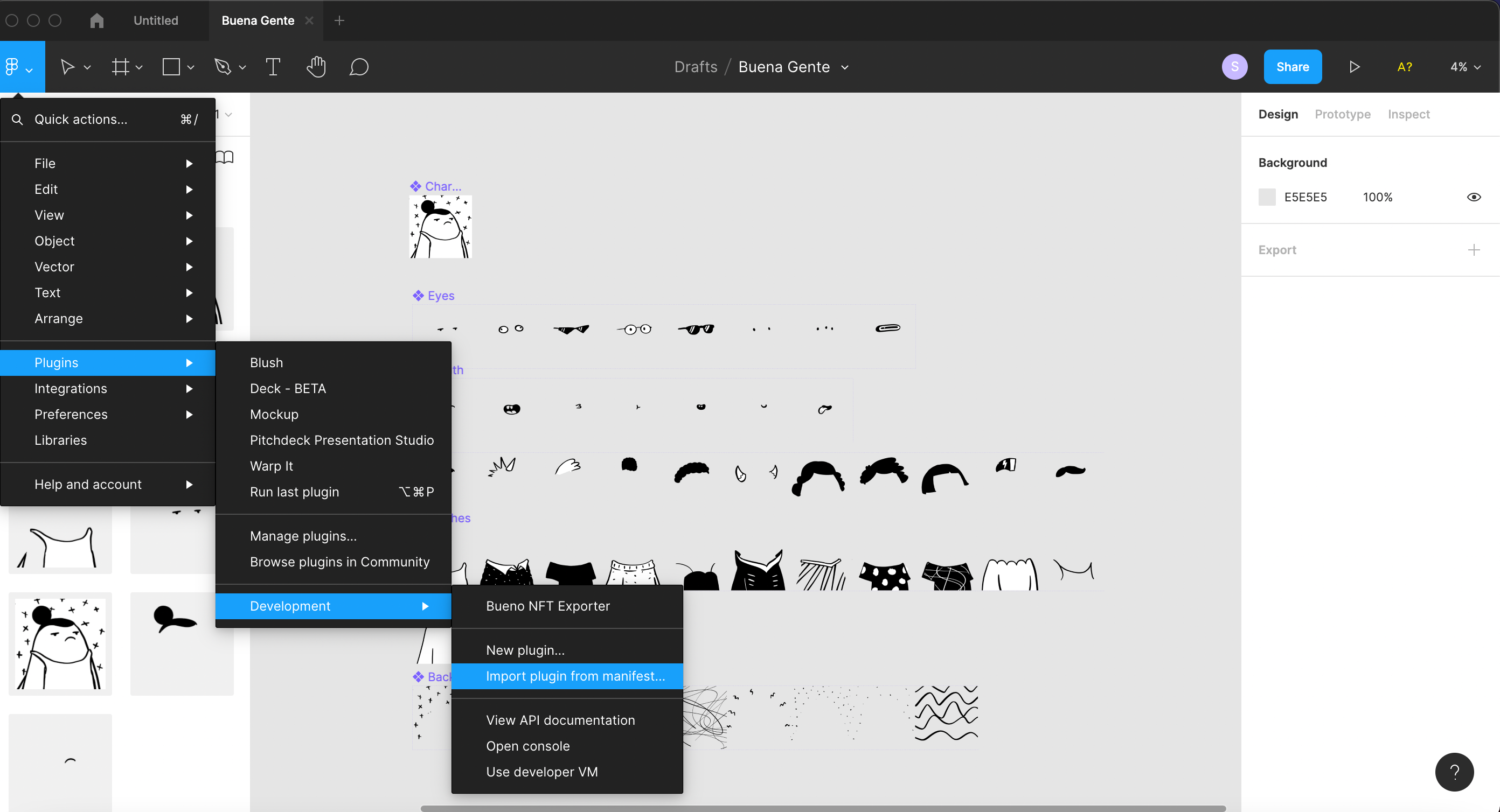
First, [**download the Bueno Figma plug-in**](https://app.bueno.art/downloads/bueno-figma-exporter.zip)**.** Then, open the Figma menu and navigate to **Plugins > Development > Import** **from manifest**.
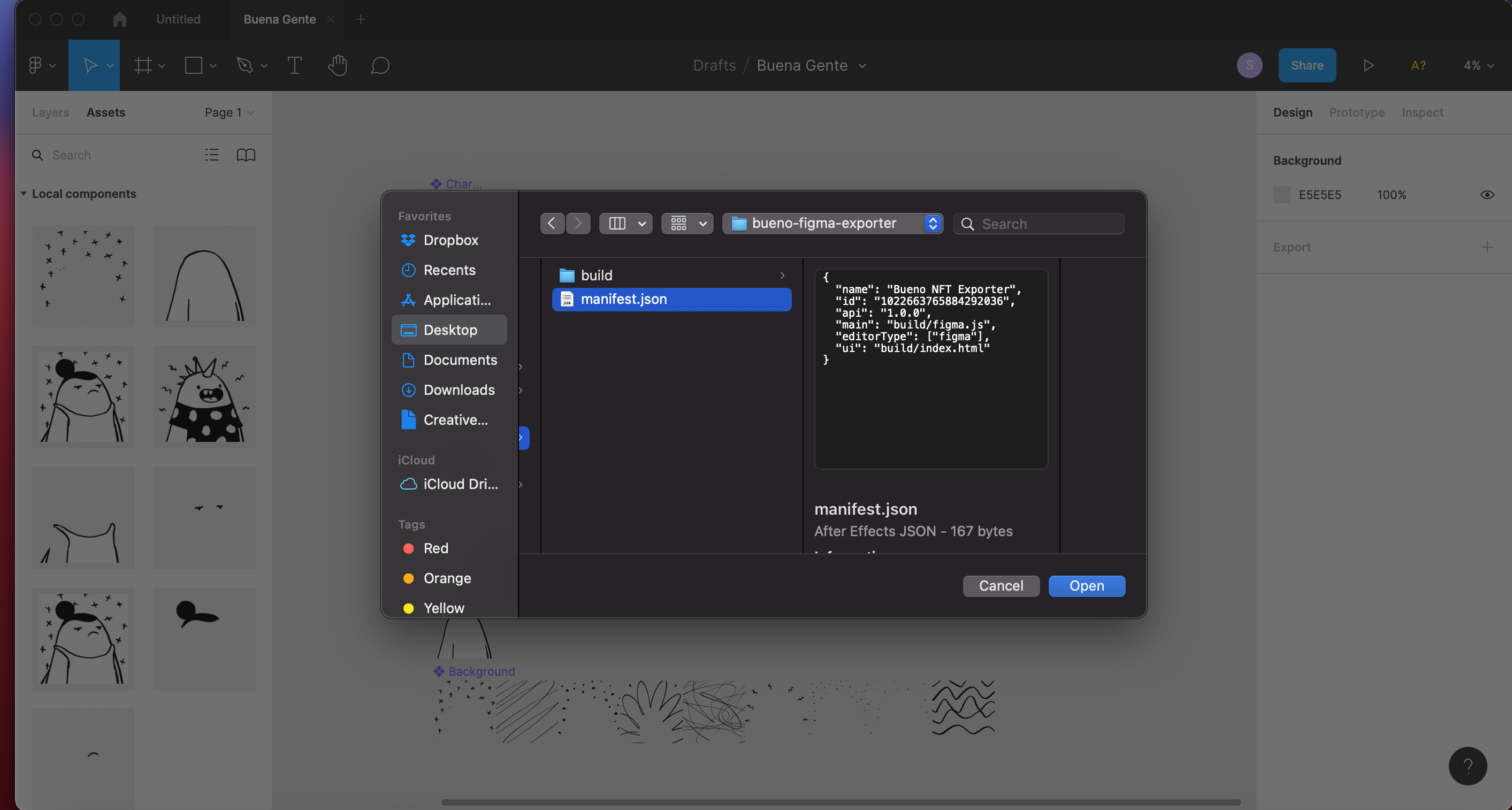
Next, select the manifest.json from the **bueno-figma-exporter** folder.
You should get a notification at the bottom of your Figma canvas confirming the installation. Now, you can run the plugin by selecting **Figma > Plugins > Development > Bueno NFT Exporter**.
To use the plugin, simply select your parent component, choose your file format (SVG or PNG), and select export. The Bueno plugin will do the rest!
## Preparing Your Assets with Figma
In order to prep your Figma file to use the Bueno Plugin, you’ll need to organize your traits into component sets. For an overview of components in Figma, follow this [link](https://help.figma.com/hc/en-us/articles/360038662654-Guide-to-Components-in-Figma).
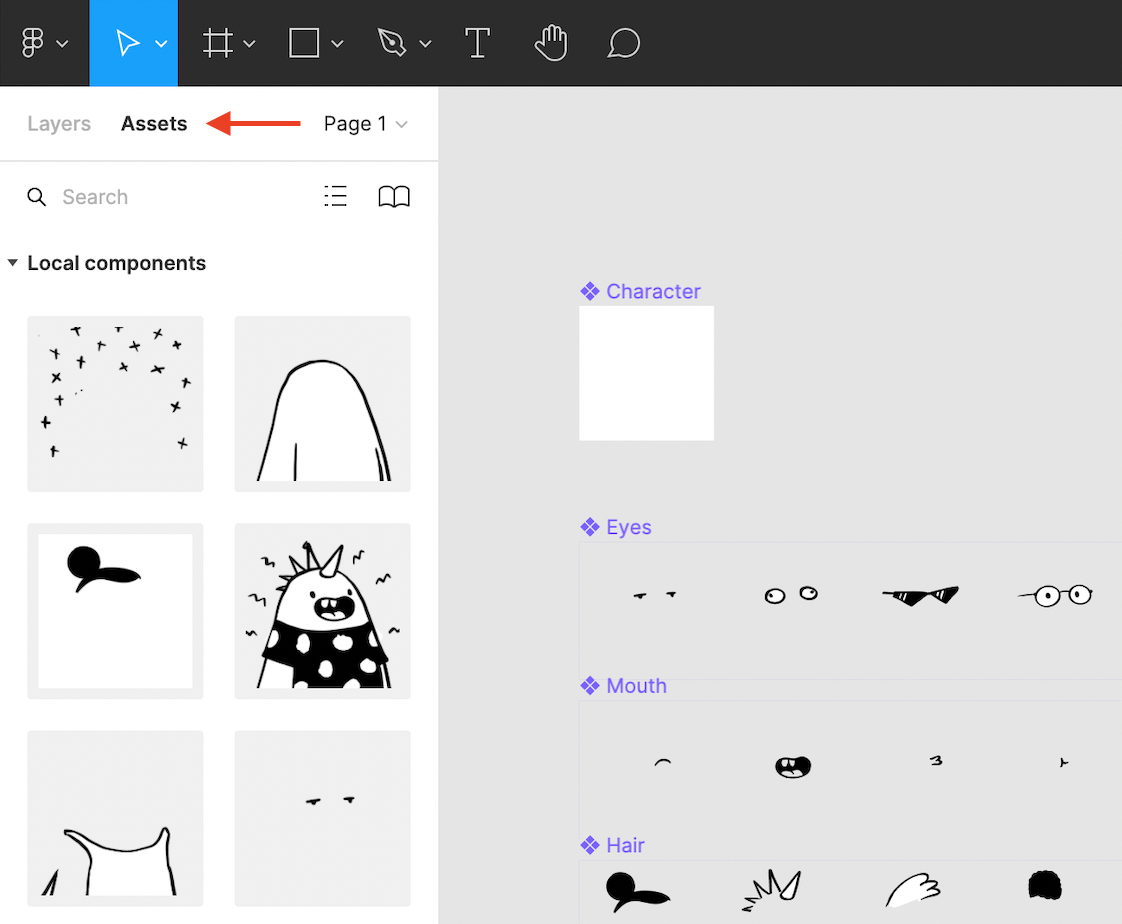
When organizing your assets, make sure you select create component set from the component menu at the top-center of your Figma canvas. Then, you can load all your assets into a single component to prep for export with theBueno NFT Exporter plugin. To do this, first create a new, blank component frame. Then, select the assets panel on the left. You can drop an instance of each of your local components from here into the new component frame. Alternatively, you can copy and paste instances of each component set into the component frame.
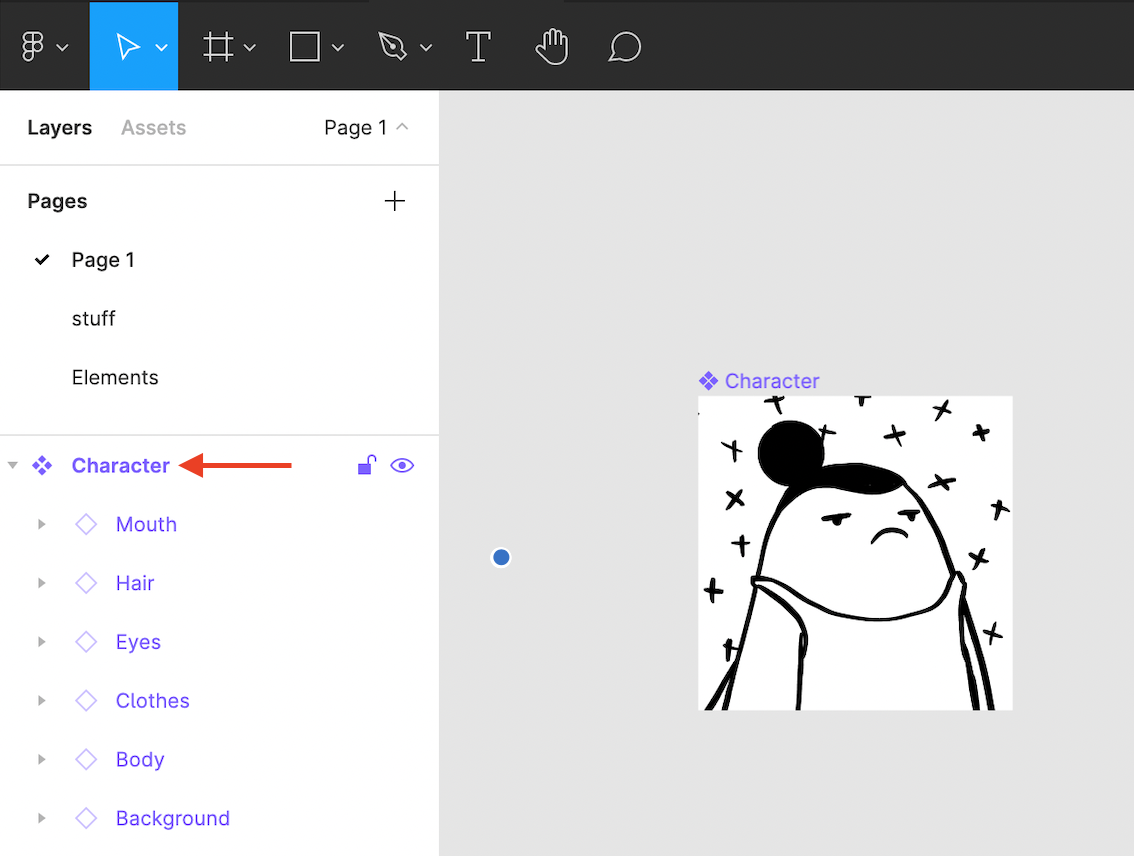
When you go back to the layers panel, you should see empty triangle markers to the left of each component layer. Don’t worry that only one trait is showing - the Bueno exporter will export all variations of each component.